Showing posts with label Testing. Show all posts

Monday, June 10, 2013

Hide your methods being tested using InternalsVisibleTo

It is not necessary to expose all methods being tested as public when using an external test project. By using the assembly attribute InternalsVisibleTo and specifying the namespace of the "friend" assembly, the visibility of the methods can then be reduced to internal, hiding them from all other assemblies. 

In the project's AssemblyInfo.cs 
[assembly: InternalsVisibleTo("MyAssembly.Tests")]

Saturday, December 15, 2012

Testing features added in Visual Studio 2012 Update1

This post explains the enhanced testing features that were introduced with Visual Studio 2012 update 1. Visual Studio 2012 now supports code coverage analysis during the manual testing. This functionality can be enabled by configuring test settings in Microsoft Test manager. This feature is currently supported for ASP.NET applications that running on IIS.

For more read here.

Monday, September 24, 2012

Software Testing with Visual Studio 2012


Microsoft Test Manager is a tool which comes with Visual Studio 2012 , which was built from the scratch to support the needs of Manual testers.  Using this tool you can manage and track test cases that helps both developer and tester.This post gives you an overview on Microsoft Software Testing tools.
image
Back ground
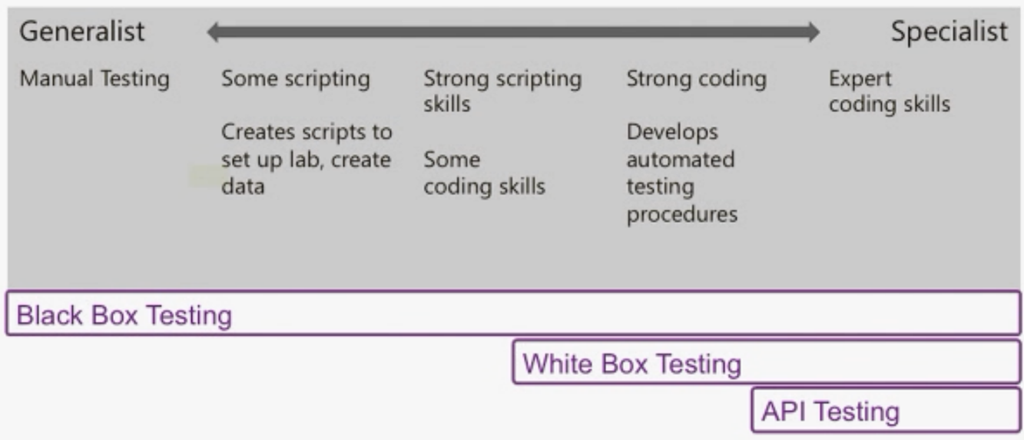
Prior to the release of Visual Studio 2010 launch the testing land scape and testing life cycle was shown as below
image
When you look at the Software Testing land scape, you can see the Manual testers in left , they look at the new test cases and new builds that are coming along and run through their test runs and report bugs back to the developers.
image
Far right end of the picture, You can see developers who are specialists in writing the code. You all know the 70% of the testing on software happens in manual testing team. Manual testers can adapt and respond to the changes in underlining applications. The typical tools that manual testers use are Excel and Word. So we need a tool for Manual testers !!!
We all know when testers do find a bug and fires to developer then developer says it works on my machine, this is the problem that happens all the time
image
There is some time waste in going back and forth between testers and developers to try to understand how the developer recreate the issue, we want to make this happen in automated fashion!
The tools are building up and automatically capturing lot of rich details bugs can give the developer everything they need at their finger tips to understand what happen and importantly fix for it.
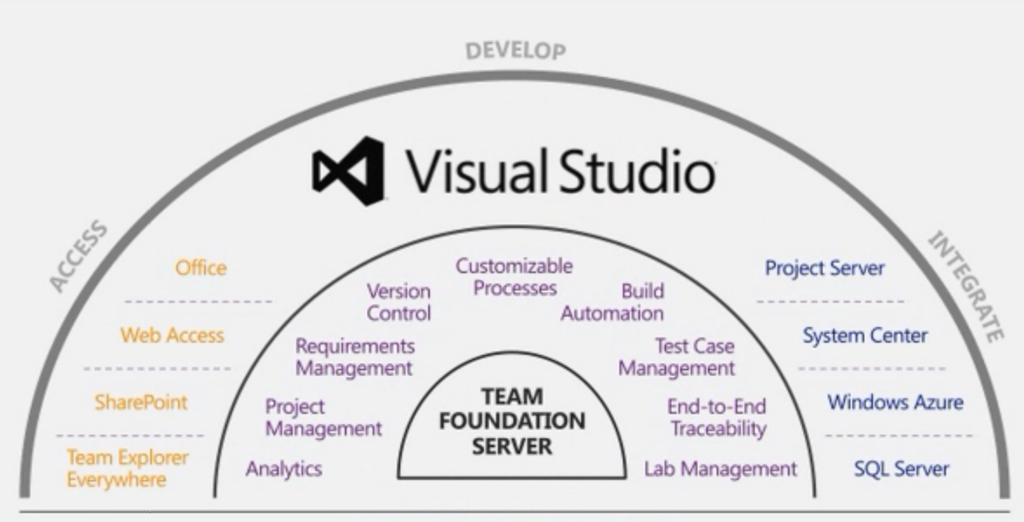
Microsoft Test Professional is part of Visual Studio 2012 family
image
Microsoft Test Professional can be purchased as a standalone tool or it includes Visual Studio 2012 premium and ultimate editions.
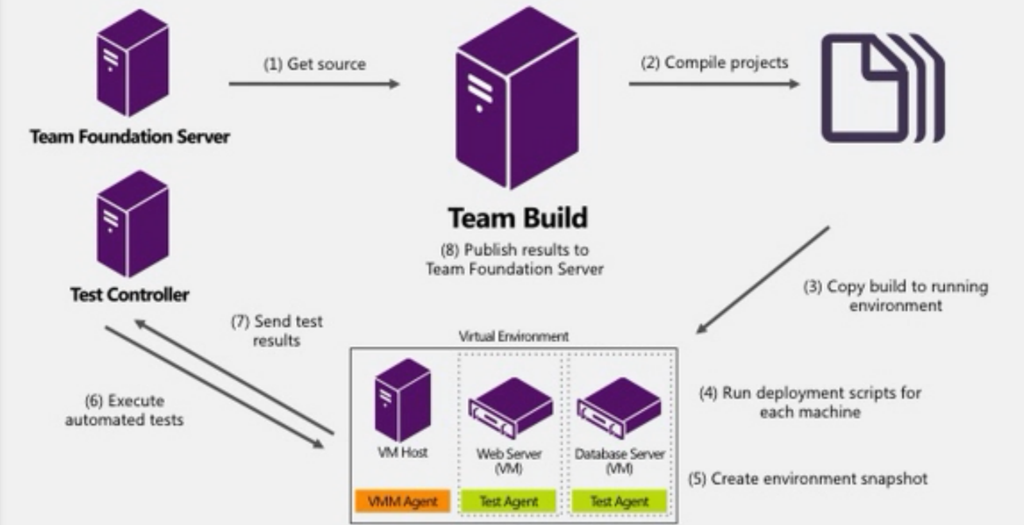
Build – Deploy – Test
image
Lab Management in VS 2012 can allow you to take code changes that developers modeling in source control and press a single button which will compile those changes and deploy them into one or more environments and run all of your automated tests against those environments.
As a manual tester if you want to test different varieties of environments like legacy operating systems, may in different browsers or may be different database projects. So Lab Management makes manual tester life more easier for creating new environments.
image
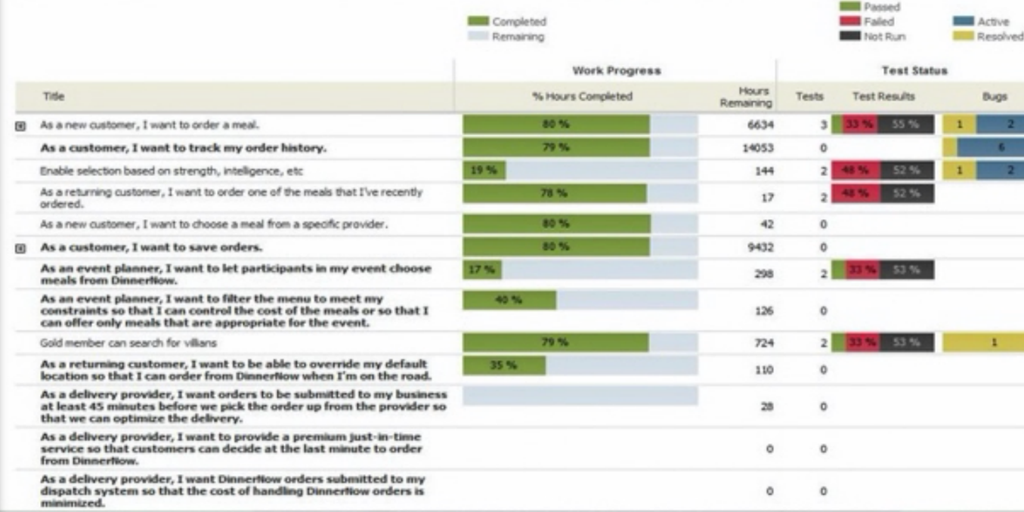
By tying all those processes and tools together , you can track the software quality all the way from requirements through their test cases. You can now say how the software quality is doing either up or down over time. You can also on what rate we are automating the test cases.
Reference: Brian Keller talk on Visual Studio launch

Visual Studio 2012 Testing Features for Developers


Developer Testing in Visual Studio 2012 has been improved a lot and it is allowing them to concentrate more on the code they are writing in the application. In addition to the testing framework that comes with Visual Studio 2012, you can easily add third-party testing frameworks in the IDE. This post discusses the new unit and integration testing features for developer in Visual Studio 2012. image
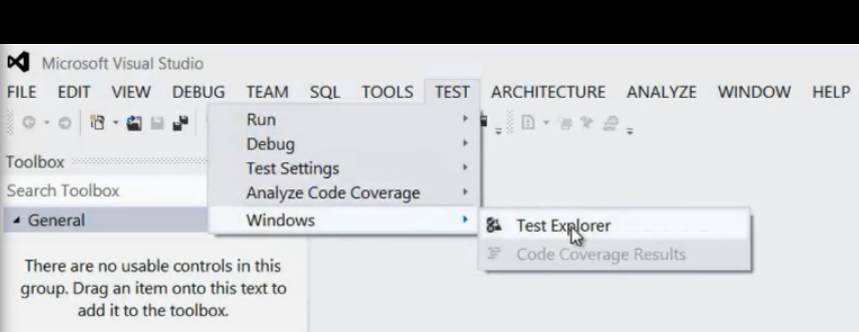
To open the new Test Explorer window, Select the Test Menu then choose windows and click Test Explorer
image
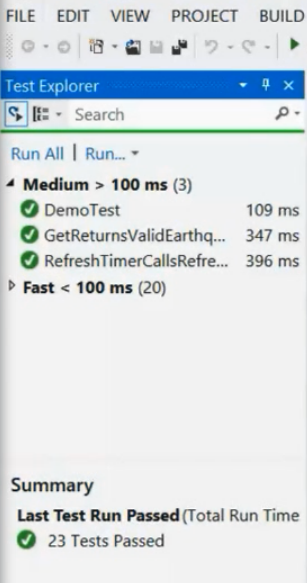
The look and fell of Test Explorer in VS 2012 is different in number of ways. You do not have too many different windows to say same information in new IDE, instead you have one widow that focus on unit and integration testing results.
image
When you select a test case in Test Explorer then you can see the detailed information about the test in below pane. The green bar in test explorer gives you quick view on the out-come.
Integrating Third Party Testing Frameworks
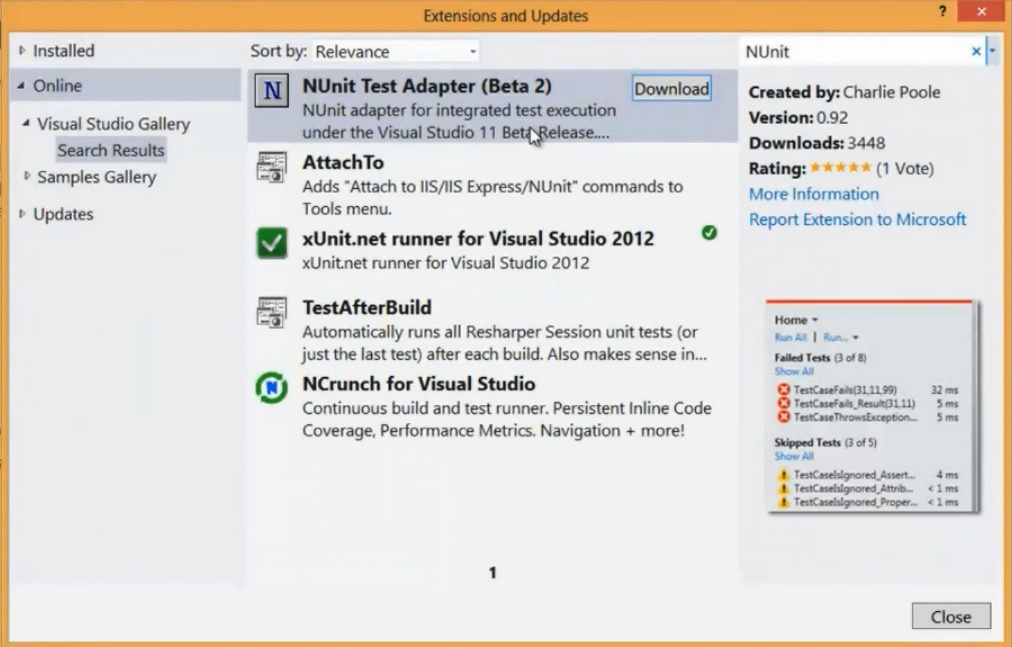
One of the important feature for developers for testing in this release is, it enables you to quickly integrate third-party testing frame-works in VS 2012. So If your team uses N-Unit or XUnit.net or some other testing framework then you can simply install Visual Studio extension.
To open the Extension tools manager, Go to Tools and click Extensions and Updates
image
You can search the framework that you need and download as shown below
image
In Visual Studio 2012 Regard less of which Testing Framework you use, it is fast and scales  up to thousands of test cases.
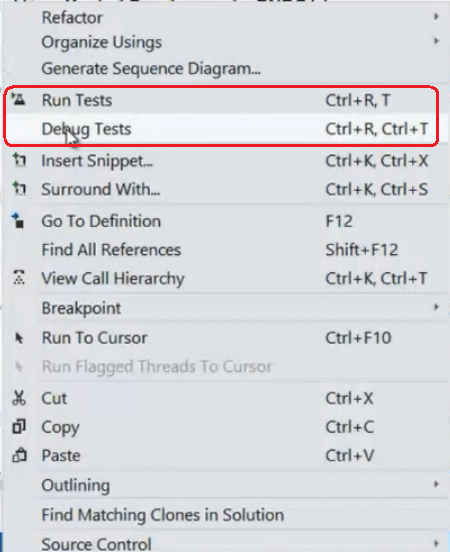
Developer testing is also very easy to use, If you want to Run or Debug the test that is in your editor then you can right-click on the code and select either run tests or debug tests.
image
You can also Filter the test cases by entering the search term in Test Explorer. You can also group tests with different properties, You can group the tests either by Test Outcome or Duration.
image
If you often require to run unit and integration tests in your solution then with single click in Visual Studio 2012 you can accomplish with Run test after build feature.
image
Now your test will run as part of every build you do.
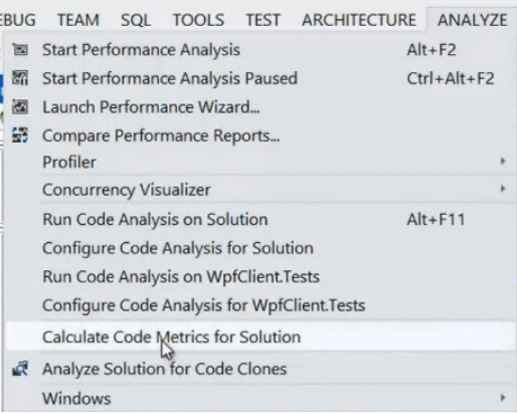
With a single-click you can analyze and understand various code-metrics about your solution.
image
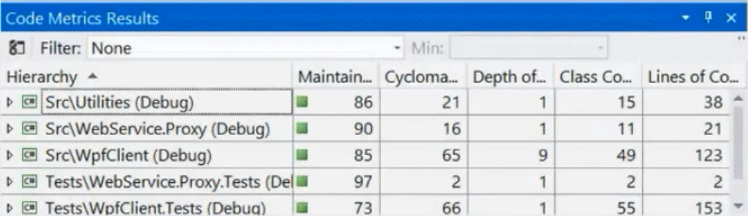
The Code Metrics Results window will appear as below information like number of line of code , Class Cohesion and Depth of inheritance
image
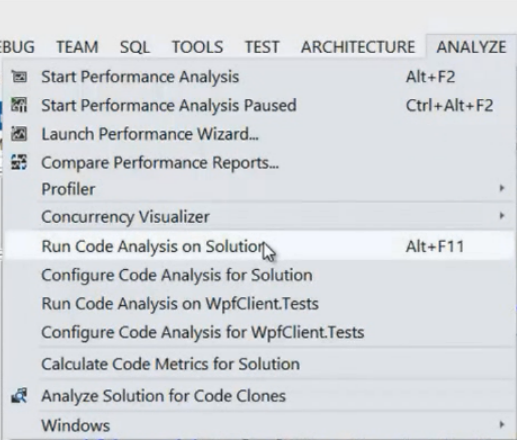
As it in previous visual studio versions, you can use Code Analysis Tool to quickly find common coding and design mistakes in your code
image
Another new feature in Visual Studio 2012 is Code Clone Analysis, using this feature you can scan your entire solution for duplicate code
image
Code Clone Analysis is smart enough to identify the duplicate code and groups the results with Exact match and medium match.
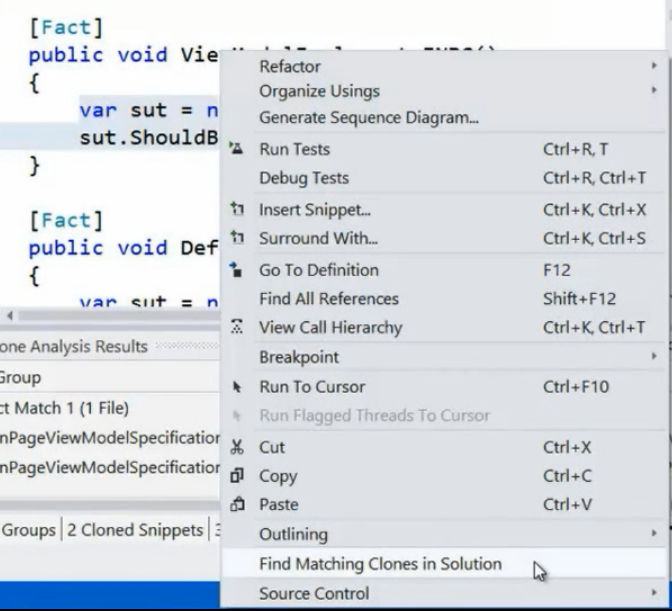
You can also use code clone feature that matches selected code in editor as shown below
image
Code Coverage Analysis
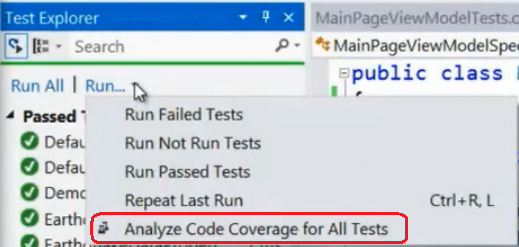
Code Coverage Analysis tool helps you to know how well your tests exercise your code? Code Coverage Analysis has significantly improved in Visual Studio 2012. To Analyze the code coverage of all the tests in your solution simply click Run drop down in Test Explorer
image
You can browse and explore the Code Coverage Results after completing the run
image
Unit test cases can also run in isolated mode with fakes framework, more information on this can be read here 
Reference: Peter Provost’s talk on Visual Studio launch

Find a cool free stuff everyday

Giveaway of the Day

Hiren Bharadwa's Posts

DotNetJalps